> ## Documentation Index
> Fetch the complete documentation index at: https://docs.scale3labs.com/llms.txt
> Use this file to discover all available pages before exploring further.
# Guide for GCP
> This doc will help you setup nodepilot for Google Cloud Platform Account
nodepilot makes it easy to setup and maintain a standalone blockchain node on Google Cloud Platform. This guide will help you with the steps that you need to perform for NodePilot.
# Prerequisites
* A Google Cloud Platform Account
* A Google Cloud Project with billing enabled
* VPC Network with subnet in desired region where you want to deploy the node
# Create a Service Account Key
For nodepilot to be able to create and manage resources on your behalf, you must create a service account and download its key.
Follow the instructions to create a service account key for your project.
1. Select your desired GCP project and from the left hand menu go to IAM & Admin → Service Accounts
Or just click on this [link](https://console.cloud.google.com/iam-admin/serviceaccounts).
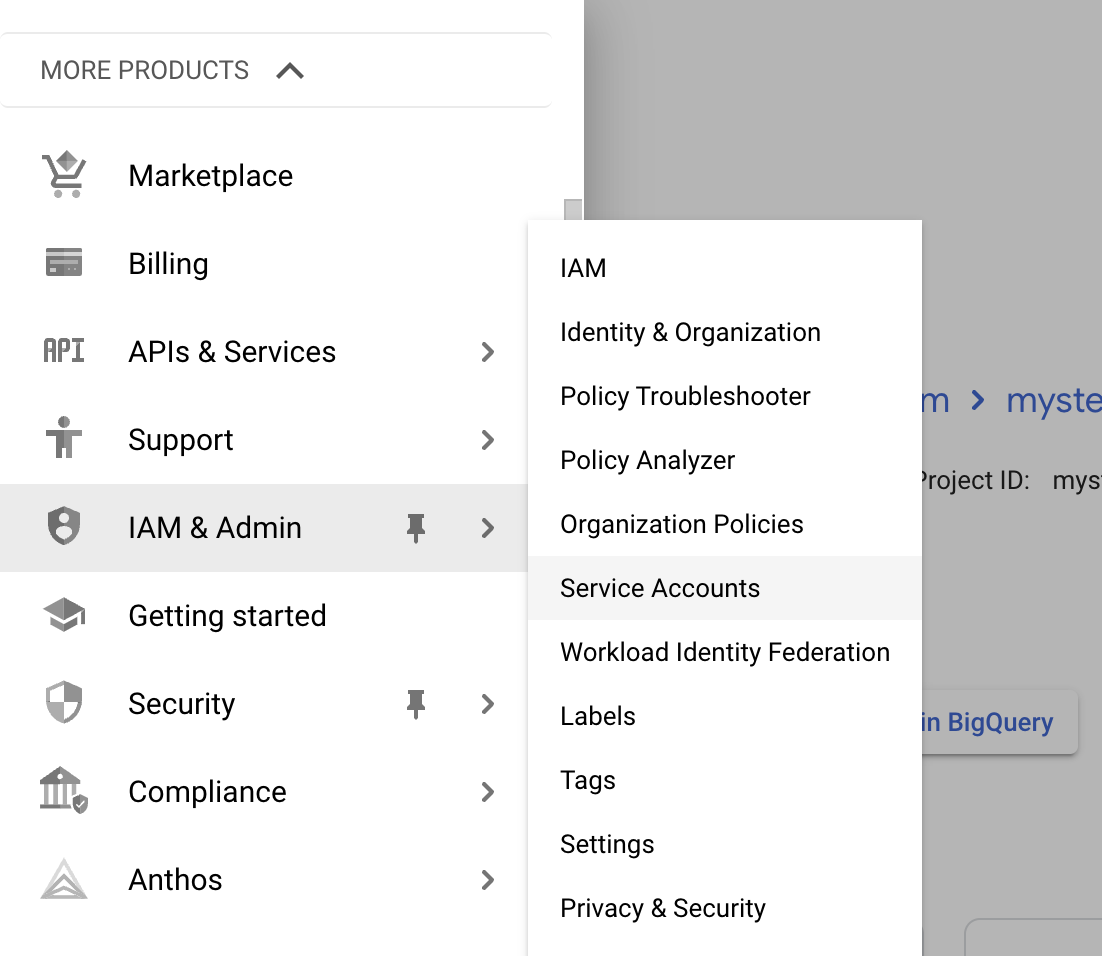 2. Click `CREATE SERVICE ACCOUNT` and fill up the details as following:
* Service account name: `scale3-nodepilot`
* Service account ID: *This field should auto populate based on the name you provide.*
* Service account description: `Scale3 nodepilot access to create and manage blockchain nodes.`
Click create and continue to the next step.
3. On the next page, you have to grant permissions to the newly created service account. Assign the role `Compute Instance Admin (v1)` & `Compute Security Admin` to the service account and select it. Click continue and you don't need to grant access so complete the process by clicking Done.
4. Now you need to create keys. On the service account UI, search for the newly created service account my searching for `scale3-nodepilot` and click on the service account email.
1. Go to keys tab and select Add key → create new key
2. Click `CREATE SERVICE ACCOUNT` and fill up the details as following:
* Service account name: `scale3-nodepilot`
* Service account ID: *This field should auto populate based on the name you provide.*
* Service account description: `Scale3 nodepilot access to create and manage blockchain nodes.`
Click create and continue to the next step.
3. On the next page, you have to grant permissions to the newly created service account. Assign the role `Compute Instance Admin (v1)` & `Compute Security Admin` to the service account and select it. Click continue and you don't need to grant access so complete the process by clicking Done.
4. Now you need to create keys. On the service account UI, search for the newly created service account my searching for `scale3-nodepilot` and click on the service account email.
1. Go to keys tab and select Add key → create new key
 2. The key type should be JSON and click create, within few seconds it should start downloading the key.
This step assumes that you have installed and configured gcloud CLI on your machine. If not, please follow the instructions [here](https://cloud.google.com/sdk/docs/install) to install and configure gcloud CLI.
1. Setup required variable that will be used throughout the process
```bash theme={null}
SCALE3_GCP_PROJECT_ID=
```
2. Create a service account
```bash theme={null}
gcloud iam service-accounts create scale3-nodepilot \
--project=$SCALE3_GCP_PROJECT_ID \
--description="Scale3 nodepilot access to create and manage blockchain nodes." \
--display-name="scale3-nodepilot"
```
3. Grant permissions to the service account
```bash theme={null}
gcloud projects add-iam-policy-binding $SCALE3_GCP_PROJECT_ID \
--member="serviceAccount:scale3-nodepilot@$SCALE3_GCP_PROJECT_ID.iam.gserviceaccount.com" \
--role="roles/compute.instanceAdmin.v1"
gcloud projects add-iam-policy-binding $SCALE3_GCP_PROJECT_ID \
--member="serviceAccount:scale3-nodepilot@$SCALE3_GCP_PROJECT_ID.iam.gserviceaccount.com" \
--role="roles/compute.securityAdmin"
```
4. Download service account key
```bash theme={null}
gcloud iam service-accounts keys create scale3-sa-key.json \
--project=$SCALE3_GCP_PROJECT_ID \
--iam-account=scale3-nodepilot@$SCALE3_GCP_PROJECT_ID.iam.gserviceaccount.com
```
# Inputs to Scale3 nodepilot
nodepilot requires some inputs to run the setup. The following are the inputs that you need to provide:
| Property | Description | Example | Comments |
| :----------------: | :--------------------------------------------------------------: | :------------------: | :------------------------------------------------------------------------------------------------------------------------------------------------------------------: |
| Hostname | Name of the server | sui-mainnet-fullnode | This will be used as the hostname of the server and visible on GCP UI |
| GCP Project ID | The project id of the GCP project | mynewproject-1111 | The same value that was used in `SCALE3_GCP_PROJECT_ID` |
| Node Zone | GCP zone | us-east1-b | Specify the GCP compute zone where you want to deploy the node. You can find the list of available zones [here](https://cloud.google.com/compute/docs/regions-zones) |
| VPC ID | GCP vpc id | default | Specify the VPC ID where you want to deploy the node. You can find the list of available VPCs [here](https://console.cloud.google.com/networking/networks/list) |
| Blockchain network | Blockchain network to deploy the node for | mainnet | Supported mainnet, testnet, devnet |
| GCP Keys | The service account key that you downloaded in the previous step | - | Upload the keys to nodepilot UI. |
# Delete the Service Account
If you want to remove nodepilot access from your GCP account, you have to delete the service account that was created for nodepilot.
1. Select your desired GCP project and from the left hand menu go to IAM & Admin → Service Accounts Or just click on this [link](https://console.cloud.google.com/iam-admin/serviceaccounts).
2. Search for the service account that you created for nodepilot by searching for `scale3-nodepilot` and click on the service account email.
3. Click on the delete button and confirm the deletion.
Run the following command to delete the Service account
```bash theme={null}
gcloud iam service-accounts delete scale3-nodepilot@$SCALE3_GCP_PROJECT_ID.iam.gserviceaccount.com \
--project=$SCALE3_GCP_PROJECT_ID
```
# Resources Provisioned
* Compute Engine Instance with 50 GB of balanced type boot disk
* Compute Disk (size depends on choosen chain)
* Two firewall rules
* Allow SSH from nodepilot IP
* Allow traffic to required ports from anywhere
2. The key type should be JSON and click create, within few seconds it should start downloading the key.
This step assumes that you have installed and configured gcloud CLI on your machine. If not, please follow the instructions [here](https://cloud.google.com/sdk/docs/install) to install and configure gcloud CLI.
1. Setup required variable that will be used throughout the process
```bash theme={null}
SCALE3_GCP_PROJECT_ID=
```
2. Create a service account
```bash theme={null}
gcloud iam service-accounts create scale3-nodepilot \
--project=$SCALE3_GCP_PROJECT_ID \
--description="Scale3 nodepilot access to create and manage blockchain nodes." \
--display-name="scale3-nodepilot"
```
3. Grant permissions to the service account
```bash theme={null}
gcloud projects add-iam-policy-binding $SCALE3_GCP_PROJECT_ID \
--member="serviceAccount:scale3-nodepilot@$SCALE3_GCP_PROJECT_ID.iam.gserviceaccount.com" \
--role="roles/compute.instanceAdmin.v1"
gcloud projects add-iam-policy-binding $SCALE3_GCP_PROJECT_ID \
--member="serviceAccount:scale3-nodepilot@$SCALE3_GCP_PROJECT_ID.iam.gserviceaccount.com" \
--role="roles/compute.securityAdmin"
```
4. Download service account key
```bash theme={null}
gcloud iam service-accounts keys create scale3-sa-key.json \
--project=$SCALE3_GCP_PROJECT_ID \
--iam-account=scale3-nodepilot@$SCALE3_GCP_PROJECT_ID.iam.gserviceaccount.com
```
# Inputs to Scale3 nodepilot
nodepilot requires some inputs to run the setup. The following are the inputs that you need to provide:
| Property | Description | Example | Comments |
| :----------------: | :--------------------------------------------------------------: | :------------------: | :------------------------------------------------------------------------------------------------------------------------------------------------------------------: |
| Hostname | Name of the server | sui-mainnet-fullnode | This will be used as the hostname of the server and visible on GCP UI |
| GCP Project ID | The project id of the GCP project | mynewproject-1111 | The same value that was used in `SCALE3_GCP_PROJECT_ID` |
| Node Zone | GCP zone | us-east1-b | Specify the GCP compute zone where you want to deploy the node. You can find the list of available zones [here](https://cloud.google.com/compute/docs/regions-zones) |
| VPC ID | GCP vpc id | default | Specify the VPC ID where you want to deploy the node. You can find the list of available VPCs [here](https://console.cloud.google.com/networking/networks/list) |
| Blockchain network | Blockchain network to deploy the node for | mainnet | Supported mainnet, testnet, devnet |
| GCP Keys | The service account key that you downloaded in the previous step | - | Upload the keys to nodepilot UI. |
# Delete the Service Account
If you want to remove nodepilot access from your GCP account, you have to delete the service account that was created for nodepilot.
1. Select your desired GCP project and from the left hand menu go to IAM & Admin → Service Accounts Or just click on this [link](https://console.cloud.google.com/iam-admin/serviceaccounts).
2. Search for the service account that you created for nodepilot by searching for `scale3-nodepilot` and click on the service account email.
3. Click on the delete button and confirm the deletion.
Run the following command to delete the Service account
```bash theme={null}
gcloud iam service-accounts delete scale3-nodepilot@$SCALE3_GCP_PROJECT_ID.iam.gserviceaccount.com \
--project=$SCALE3_GCP_PROJECT_ID
```
# Resources Provisioned
* Compute Engine Instance with 50 GB of balanced type boot disk
* Compute Disk (size depends on choosen chain)
* Two firewall rules
* Allow SSH from nodepilot IP
* Allow traffic to required ports from anywhere